Sending Files from AL11 to an SFTP Server with SAP Cloud Integration
A complete walkthrough — testing the SSH connection, adding the partner's host key to known_hosts, building the iFlow and posting files from AL11 with a small ABAP report.
A very common requirement: S/4HANA writes a file to the application server (AL11) — invoices, payments, stock lists — and a partner wants it on their SFTP server. In this post we build that flow with SAP Cloud Integration (part of Integration Suite), from the first connectivity test to the file arriving on the other side.
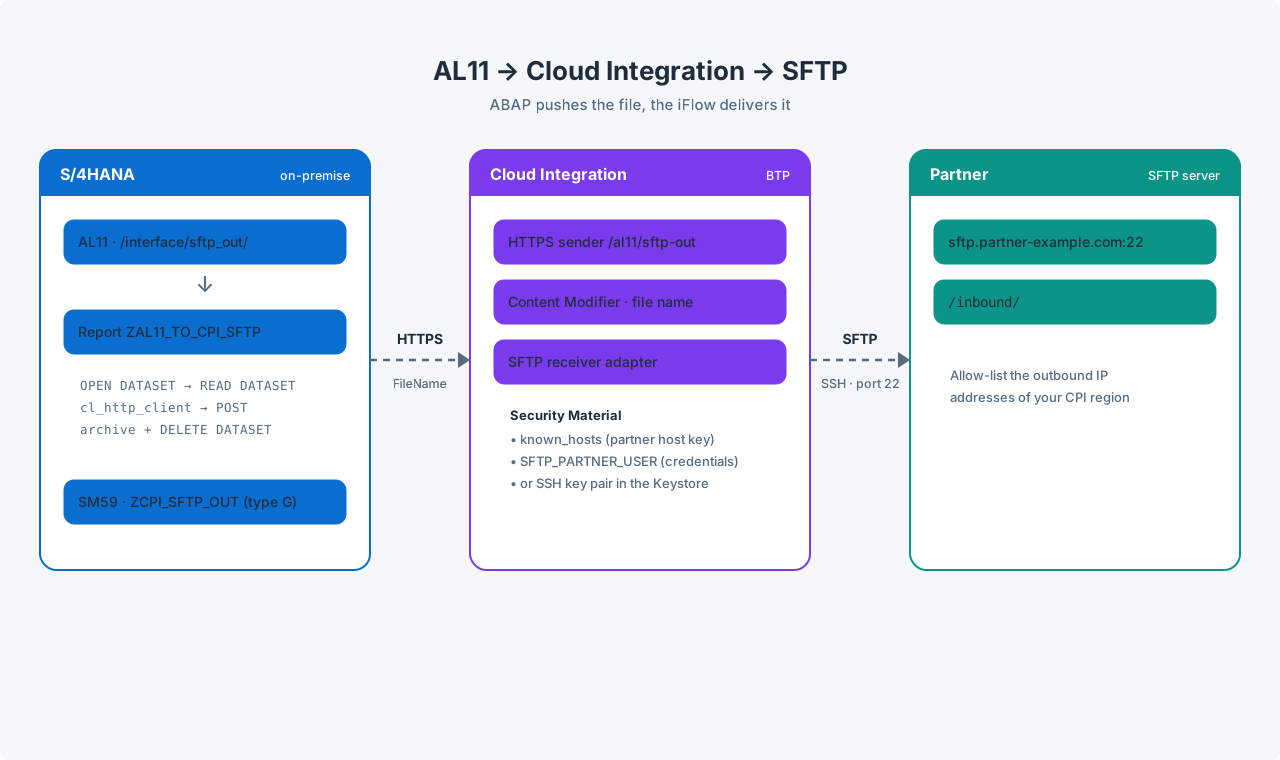
The idea
Cloud Integration runs in the cloud and cannot see the file system of your on-premise application server. So we turn the direction around:
- A small ABAP report reads the file from AL11 and posts it to an HTTPS endpoint of an iFlow.
- The iFlow writes it to the partner's server with the SFTP receiver adapter.
- The report moves the original file to an archive folder.
An alternative is an SFTP sender adapter that polls an SFTP server inside your network through the Cloud Connector. That needs an SFTP server on your side; the push approach above does not need anything extra.
What you need from the partner
| Information | Example |
|---|---|
| Host and port | sftp.partner-example.com:22 |
| User | s4_upload |
| Authentication | Password or public key |
| Target directory | /inbound/ |
| IP allow-list? | If yes, send them the outbound IP addresses of your Cloud Integration region |
1. Test the connection and get the host key
Open Monitor → Integrations and APIs → Manage Security → Connectivity Tests and switch to the SSH tab.
- Host / Port: the partner's server
- Proxy Type:
Internet - Authentication:
Nonefor the first try - Leave Check Host Key unchecked — we don't know the key yet
Click Send. If the server is reachable, the response shows its host key. Click Copy Host Key.
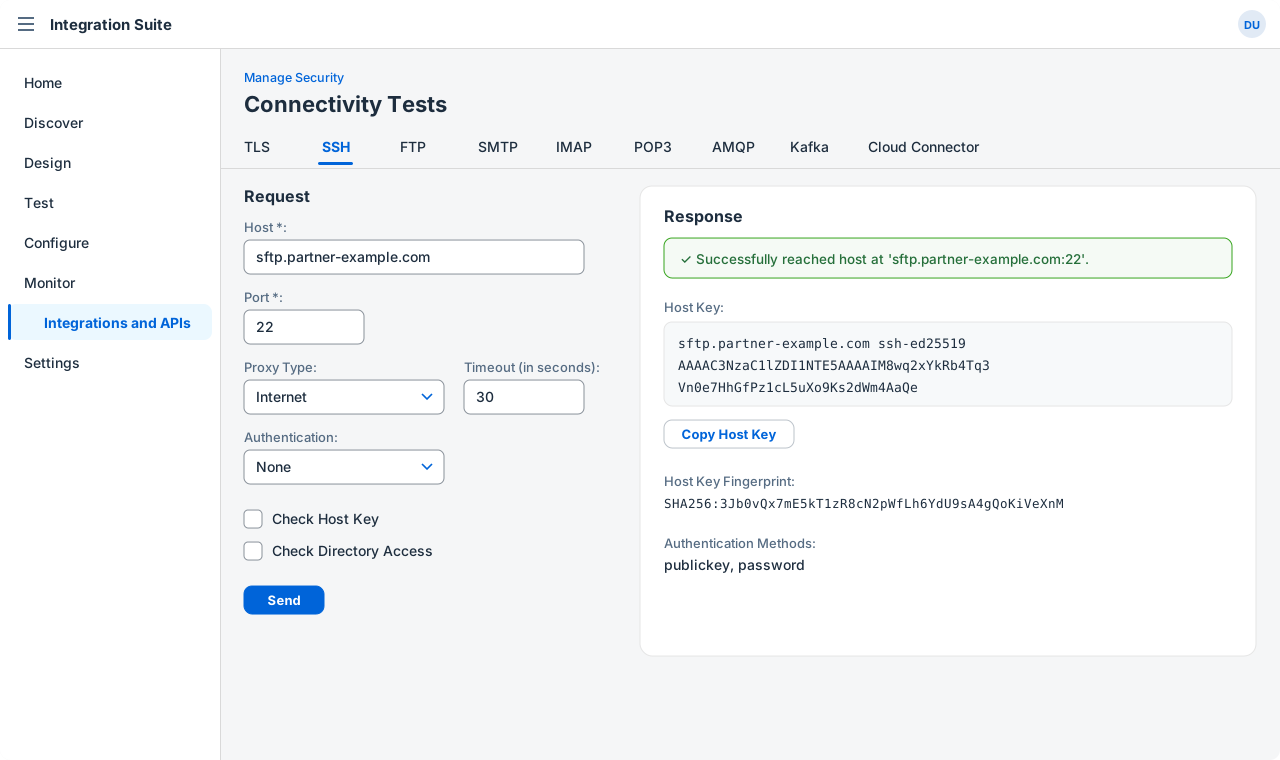
If the test ends with a timeout, it is almost always a firewall: the partner has not allowed your Cloud Integration IP addresses yet.
2. Add the host key to known_hosts
The SFTP adapter only talks to servers it knows. The list of known servers is a security material named known_hosts. This check is what protects you from someone pretending to be the partner's server.
Go to Manage Security → Security Material:
- If
known_hostsalready exists, download it first and add the new line at the end. Never upload a file that contains only the new key — the hosts of all other integrations would be lost. - Then choose Upload → Known Hosts (SSH), keep the name
known_hostsand deploy.
# one line per host:  <host> <key type> <base64 public key>
sftp.old-partner.com ssh-rsa AAAAB3NzaC1yc2EAAAADAQABAAABAQC7v...
sftp.partner-example.com ssh-ed25519 AAAAC3NzaC1lZDI1NTE5AAAAIM8wq2xYkRb4Tq3Vn0e7HhGfPz1cL5uXo9Ks2dWm4AaQe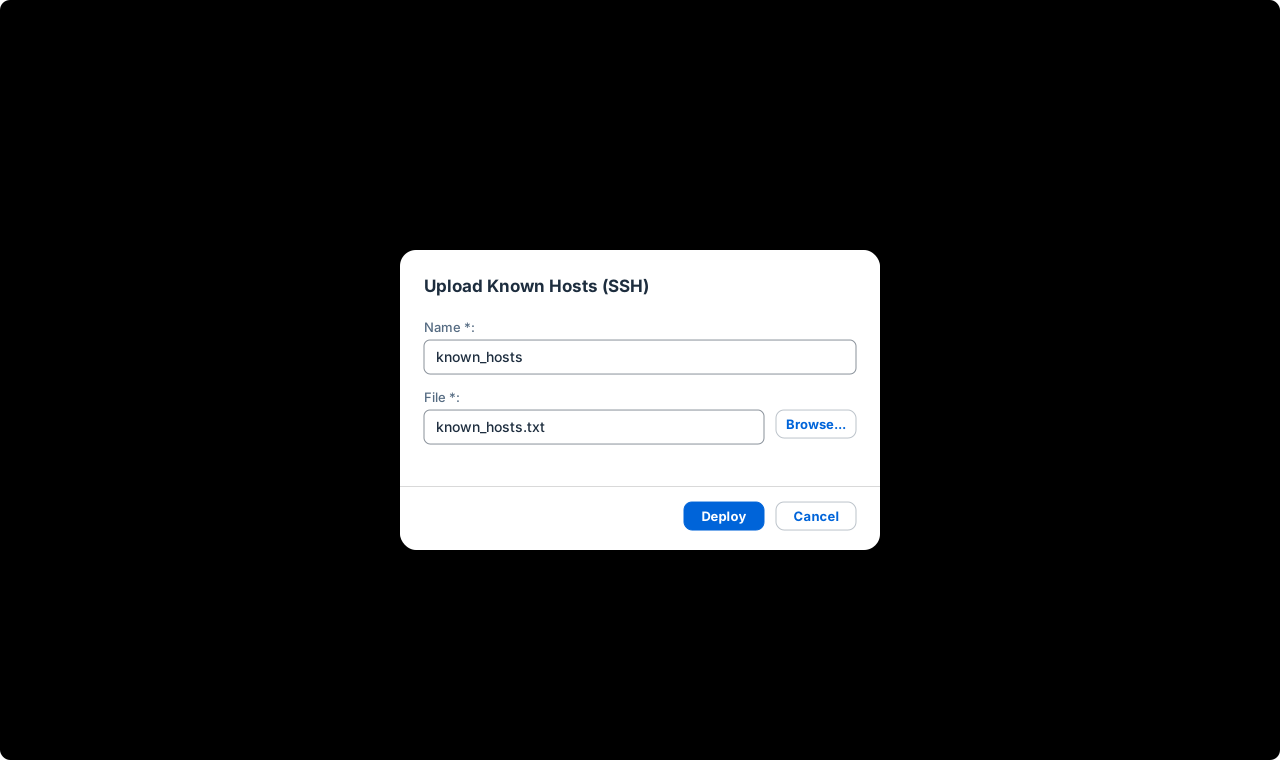
3. Store the credentials
- Password: Security Material → Create → User Credentials, e.g. name
SFTP_PARTNER_USER. - Public key: Keystore → Create → SSH Key. Download the public OpenSSH key and send it to the partner — the private key never leaves the tenant. In the adapter you then refer to it with Private Key Alias.
4. Test again — this time for real
Back in the SSH connectivity test:
- Authentication:
User CredentialswithSFTP_PARTNER_USER(orPublic Key) - Check Host Key: ✓
- Check Directory Access: ✓ with
/inbound/
When this test is green, the Cloud Integration side is ready. Everything that fails from now on is in the iFlow or in ABAP — which makes troubleshooting much easier.
5. Build the iFlow
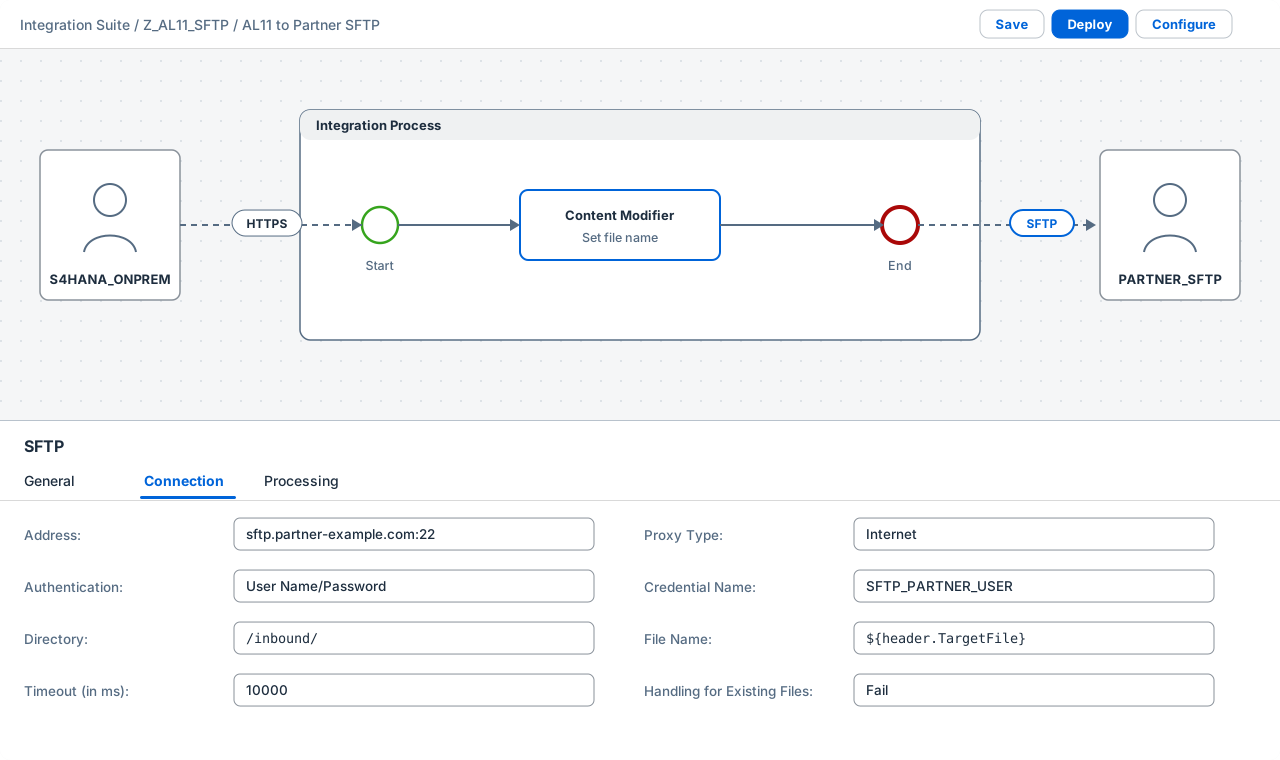
HTTPS sender adapter
- Address:
/al11/sftp-out - User Role:
ESBMessaging.send - CSRF Protected: unchecked — our ABAP report doesn't fetch a token
Runtime configuration of the iFlow: put FileName into Allowed Header(s). Otherwise Cloud Integration drops the header and the file name is lost.
Content Modifier — decide the target file name:
Message Header
  Name:        TargetFile
  Source Type: Expression
  Source Value: ${header.FileName}

Optional – add a timestamp to avoid overwriting:
  Source Value: ${date:now:yyyyMMdd_HHmmss}_${header.FileName}
SFTP receiver adapter
| Field | Value |
|---|---|
| Address | sftp.partner-example.com:22 |
| Proxy Type | Internet |
| Authentication | User Name/Password |
| Credential Name | SFTP_PARTNER_USER |
| Directory | /inbound/ |
| File Name | ${header.TargetFile} |
| Handling for Existing Files | Fail — safer than overwriting |
Deploy the iFlow and copy its endpoint from Monitor → Manage Integration Content.
6. The ABAP side: SM59 and the report
Create an HTTP destination of type G in SM59:
- Target Host: the runtime host of your tenant (
...-rt.cfapps.<region>.hana.ondemand.com) - Port:
443, SSL: active - Path Prefix:
/http/al11/sftp-out - Logon: basic authentication with
clientid/clientsecretfrom a service key of the Process Integration Runtime (planintegration-flow), or a client certificate
Import the server certificate chain into STRUST (SSL client identity) so the TLS handshake works.
The files waiting in AL11:
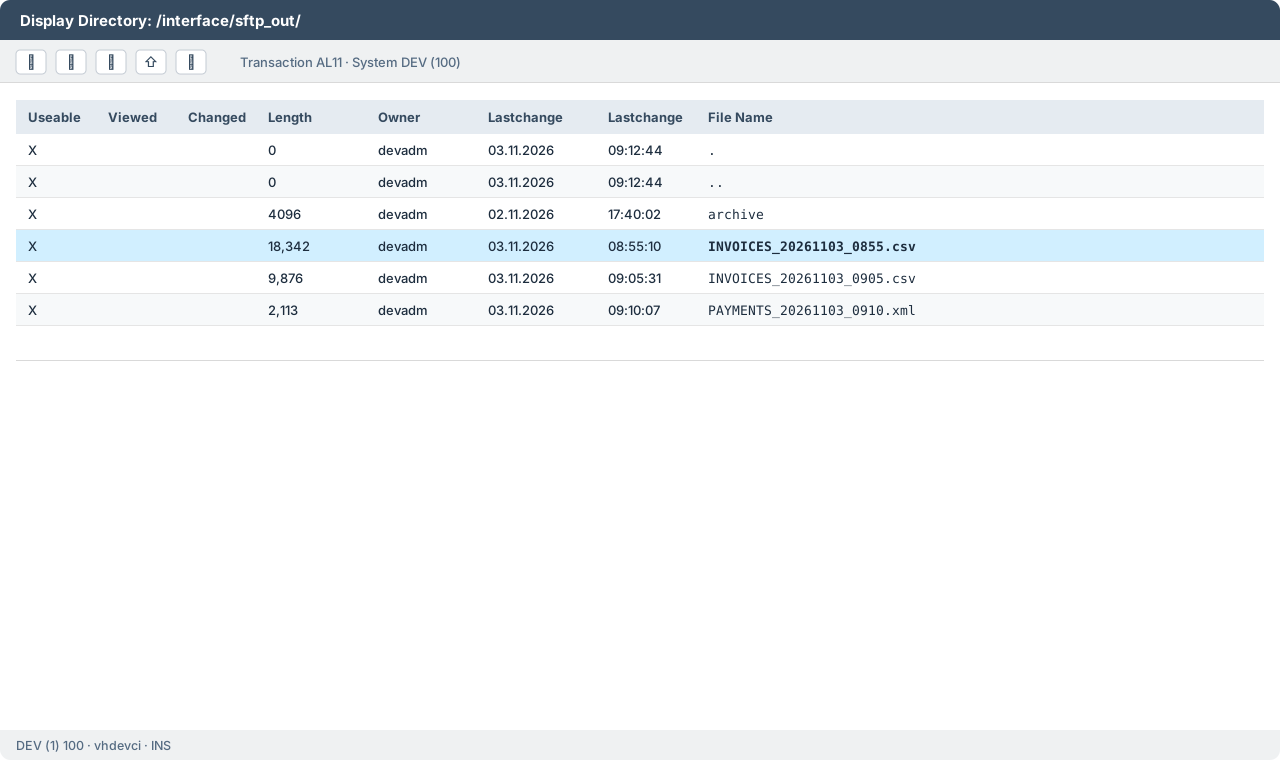
And the report:
REPORT zal11_to_cpi_sftp.

" Reads a file from the application server (AL11), posts it to a
" Cloud Integration iFlow and moves it to an archive folder.
" Classic ABAP (on-premise): OPEN DATASET is not available in ABAP Cloud.

PARAMETERS: p_dir  TYPE c LENGTH 200 LOWER CASE DEFAULT '/interface/sftp_out/',
            p_file TYPE c LENGTH 120 LOWER CASE OBLIGATORY,
            p_arch TYPE c LENGTH 200 LOWER CASE DEFAULT '/interface/sftp_out/archive/'.

CONSTANTS c_destination TYPE rfcdest VALUE 'ZCPI_SFTP_OUT'.

START-OF-SELECTION.
  DATA(path)    = |{ p_dir }{ p_file }|.
  DATA(archive) = |{ p_arch }{ p_file }|.
  DATA content TYPE xstring.

  " 1. Read the file from AL11
  TRY.
      OPEN DATASET path FOR INPUT IN BINARY MODE.
      IF sy-subrc <> 0.
        MESSAGE |File { path } cannot be opened| TYPE 'E'.
      ENDIF.
      READ DATASET path INTO content.
      CLOSE DATASET path.
    CATCH cx_sy_file_access_error INTO DATA(file_error).
      MESSAGE file_error->get_text( ) TYPE 'E'.
  ENDTRY.

  " 2. Post it to the iFlow (SM59 destination of type G)
  DATA client TYPE REF TO if_http_client.
  cl_http_client=>create_by_destination(
    EXPORTING  destination = c_destination
    IMPORTING  client      = client
    EXCEPTIONS OTHERS      = 1 ).
  IF sy-subrc <> 0.
    MESSAGE |Destination { c_destination } cannot be used (SM59)| TYPE 'E'.
  ENDIF.

  client->request->set_method( if_http_request=>co_request_method_post ).
  client->request->set_content_type( 'application/octet-stream' ).
  client->request->set_header_field( name = 'FileName' value = CONV #( p_file ) ).
  client->request->set_data( content ).

  client->send( EXCEPTIONS OTHERS = 1 ).
  IF sy-subrc = 0.
    client->receive( EXCEPTIONS OTHERS = 1 ).
  ENDIF.
  IF sy-subrc <> 0.
    DATA error_text TYPE string.
    client->get_last_error( IMPORTING message = error_text ).
    MESSAGE error_text TYPE 'E'.
  ENDIF.

  DATA status TYPE i.
  DATA reason TYPE string.
  client->response->get_status( IMPORTING code = status reason = reason ).
  client->close( ).
  IF status <> 200.
    MESSAGE |Cloud Integration answered { status } { reason }| TYPE 'E'.
  ENDIF.

  " 3. Archive: write a copy, then delete the original
  OPEN DATASET archive FOR OUTPUT IN BINARY MODE.
  TRANSFER content TO archive.
  CLOSE DATASET archive.
  DELETE DATASET path.

  MESSAGE |{ p_file } sent to the SFTP server and archived| TYPE 'S'.
For production use, consider:
- Logical file names (transaction
FILE) instead of free paths, plus an authorization check onS_DATASET. - A background job (
SM36) that loops over the directory instead of one file per run.
7. Test end to end
- Run the report with a file name from AL11.
- In Monitor → Message Processing the message should be Completed.
- The file is in the partner's
/inbound/folder, and in AL11 it moved toarchive/.
Troubleshooting
| Symptom | Likely cause | Fix |
|---|---|---|
Auth fail / host key rejected |
Host key missing or changed | Step 2 — update known_hosts |
| Connection timed out | Firewall / allow-list | Partner allows your CPI IP addresses |
No such file / permission denied |
Wrong directory or rights | Connectivity test with Check Directory Access |
| HTTP 401 / 403 in ABAP | Wrong client ID/secret or role | Check the service key and ESBMessaging.send |
| HTTP 403 with CSRF message | CSRF protection is on | Uncheck CSRF Protected |
| File has the wrong name | FileName header dropped |
Add it to Allowed Header(s) |
| "File already exists" | Handling for Existing Files = Fail | Add a timestamp to the file name |
The nice thing about this setup: every part can be tested on its own — the SSH connection, the iFlow and the ABAP report. When something breaks, you know exactly where to look.
Comments